Skip to content
gatezy

In this part

Organiser

From the guest list to the night of the event, in seven steps. Steps 6 and 7 are optional.

  1. First sign-in
  2. Your events
  3. Preparation, step by step
  4. 4. Guests
  5. 5. Preview and send
  6. 6. Areas and categories (optional)
  7. 7. Door staff
  8. Send staff their access
  9. During the event
  10. After the event

First sign-in

You receive an email from Gatezy with the link to choose your password (at least 10 characters). The link is valid for 24 hours.

If it has expired, use Forgot your password? on the sign-in screen. From then on you sign in at app.gatezy.net with email and password.

Your events

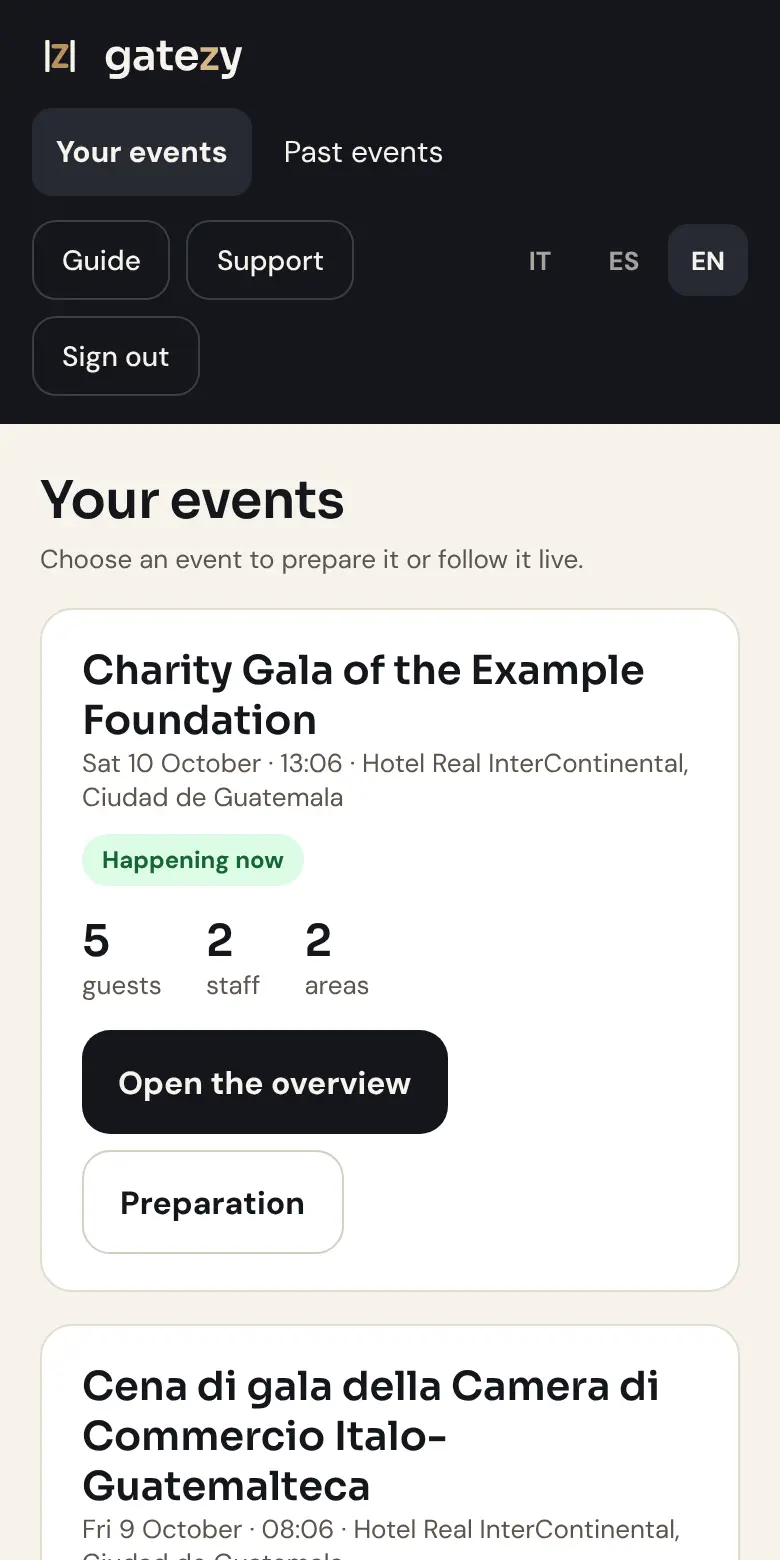
The first page shows your events, with status, dates and numbers. From each event you open Preparation or, on the night, Open the overview.

Your events

Preparation, step by step

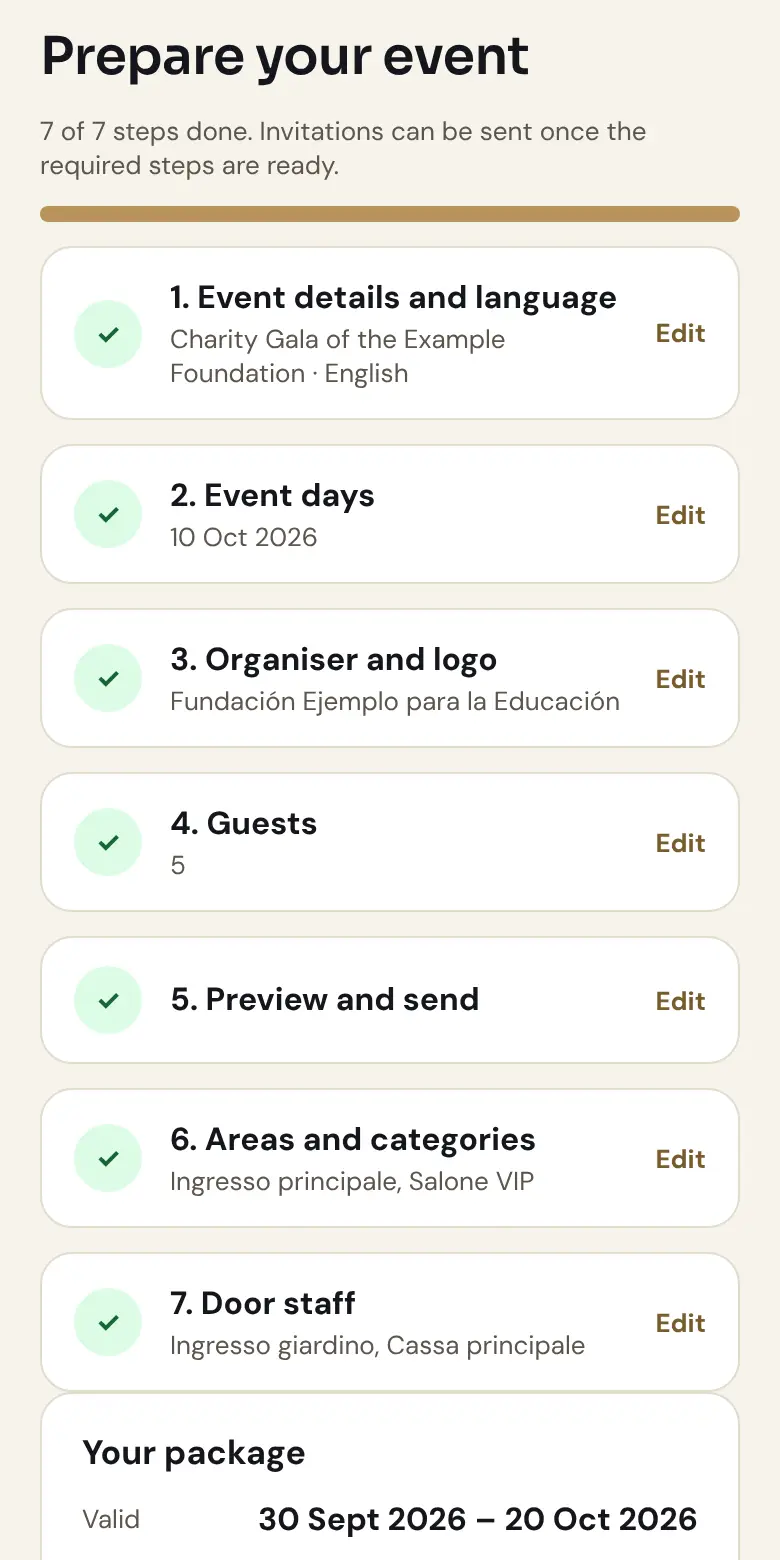
1. Event details and language: name, venue and language of the event. Invitations are sent in that language.

2. Event days: when people can come in. A party that goes past midnight is a single day.

3. Organiser and logo: the organiser's details, message and logo shown in the email.

Every form has Save and continue. The green tick means the step is complete.

Preparation, step by step

4. Guests

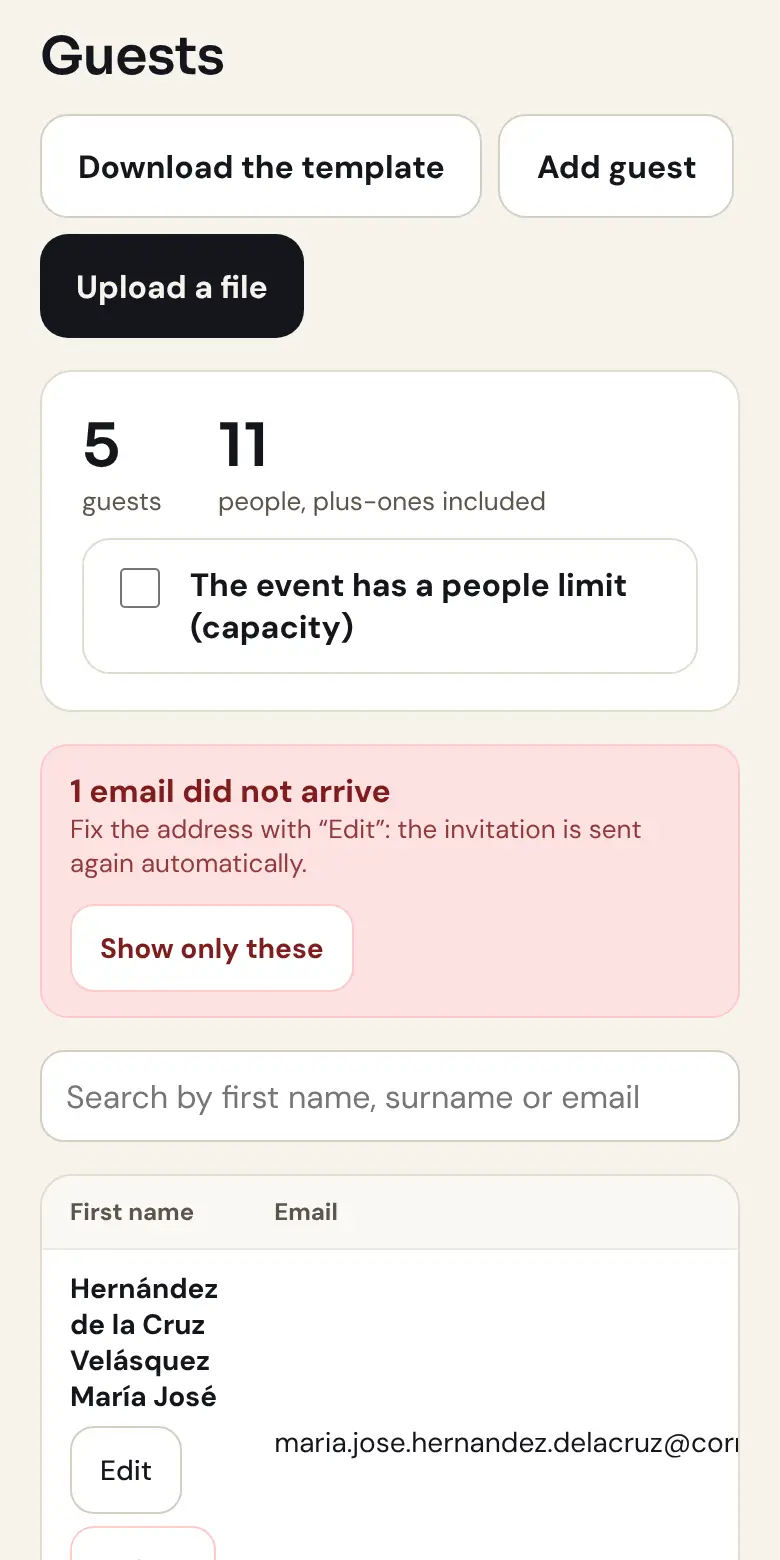
Download the template, fill it in Excel (first name, surname, email, plus-ones, category, amount if any) and then Upload a file. Or Add guest, one at a time.

Before saving you see a preview: errors to fix on the spot, similar names to decide on, who is added or changed. Then Confirm and save.

You can set a people limit: Gatezy will not let it be exceeded.

If an email does not arrive, a red notice appears above the list with Show only these. Fix the address with Edit: the invitation is sent again automatically.

Deleted someone by mistake? Recently deleted has Restore: the same QR codes become valid again.

4. Guests

5. Preview and send

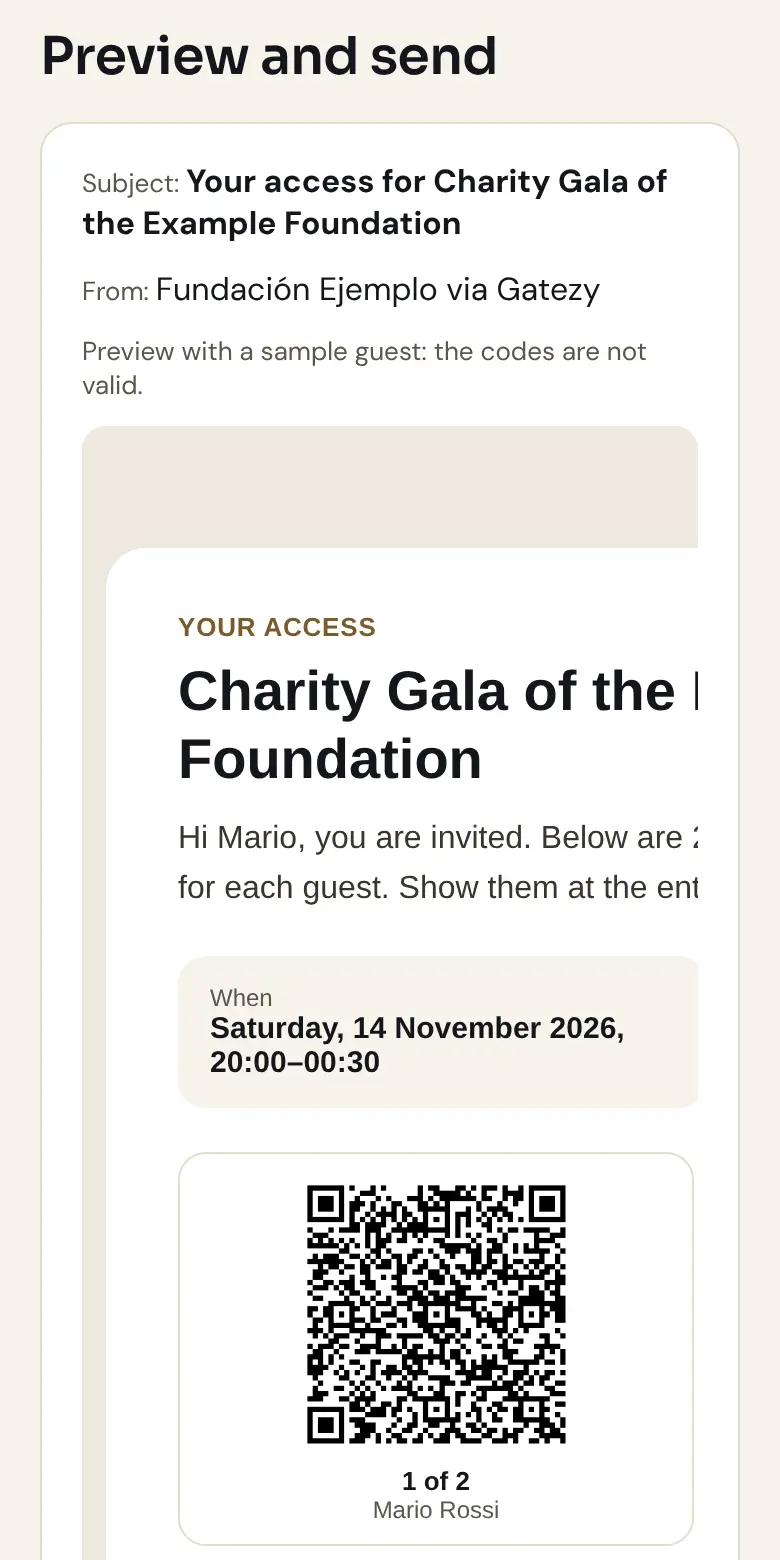
You see the real email guests will receive. First tap Send me a test email and check it on your phone.

Then confirm the sending: every guest receives personal QR codes, one per person. The sending status updates by itself.

If after sending you change someone's name, email or plus-ones, they automatically receive an updated email with the right QR codes.

5. Preview and send

6. Areas and categories (optional)

The main entrance is always there. Add reserved areas (e.g. "VIP lounge") and choose which guest categories can enter.

7. Door staff

In Rules for all staff you decide whether staff can change area from their phone and, if there are payments, where people pay.

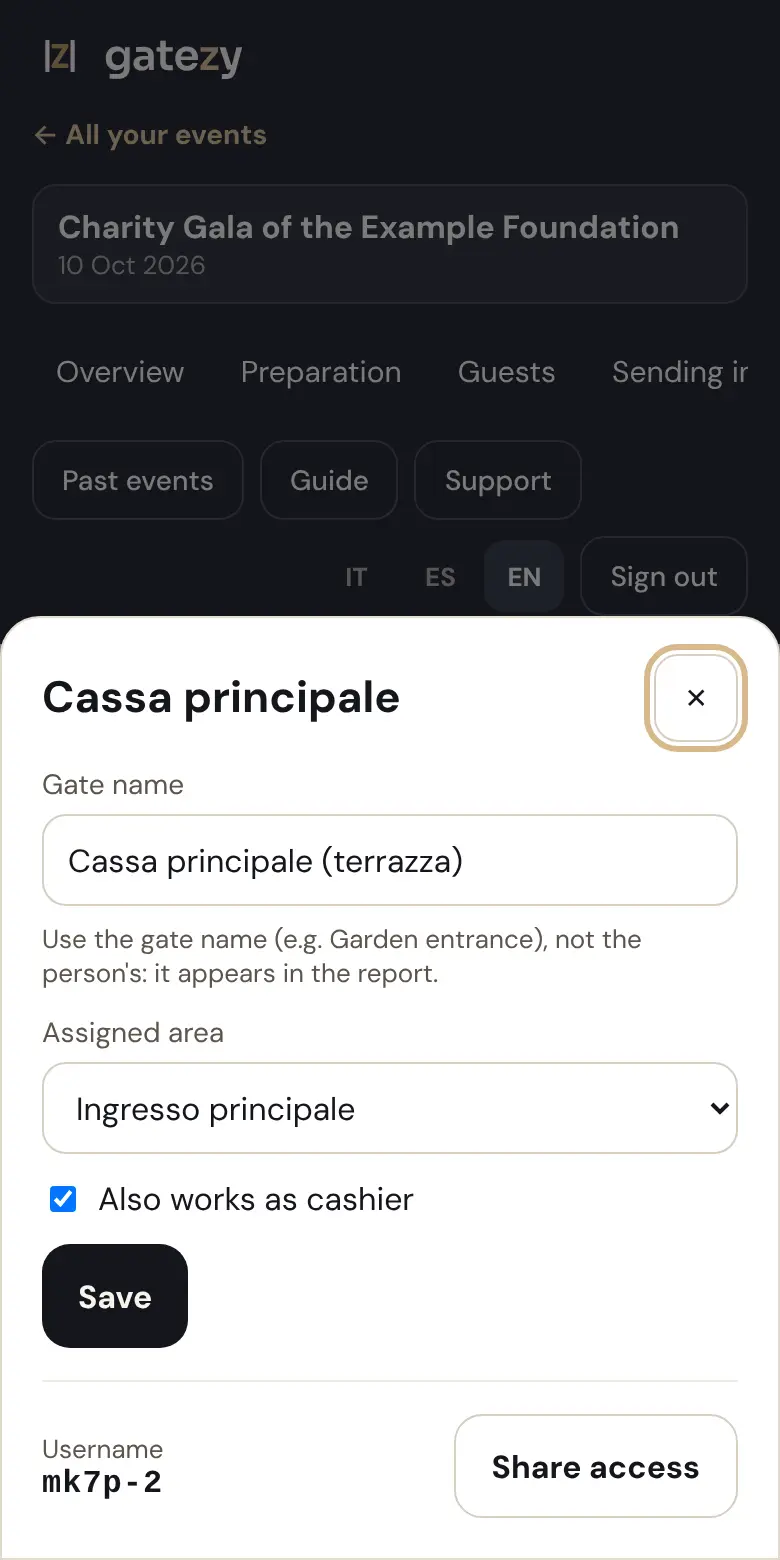
Tap a staff member to change the gate name, assigned area and Also works as cashier. Tap Save: phones update within 20 seconds, even during the event.

7. Door staff

Send staff their access

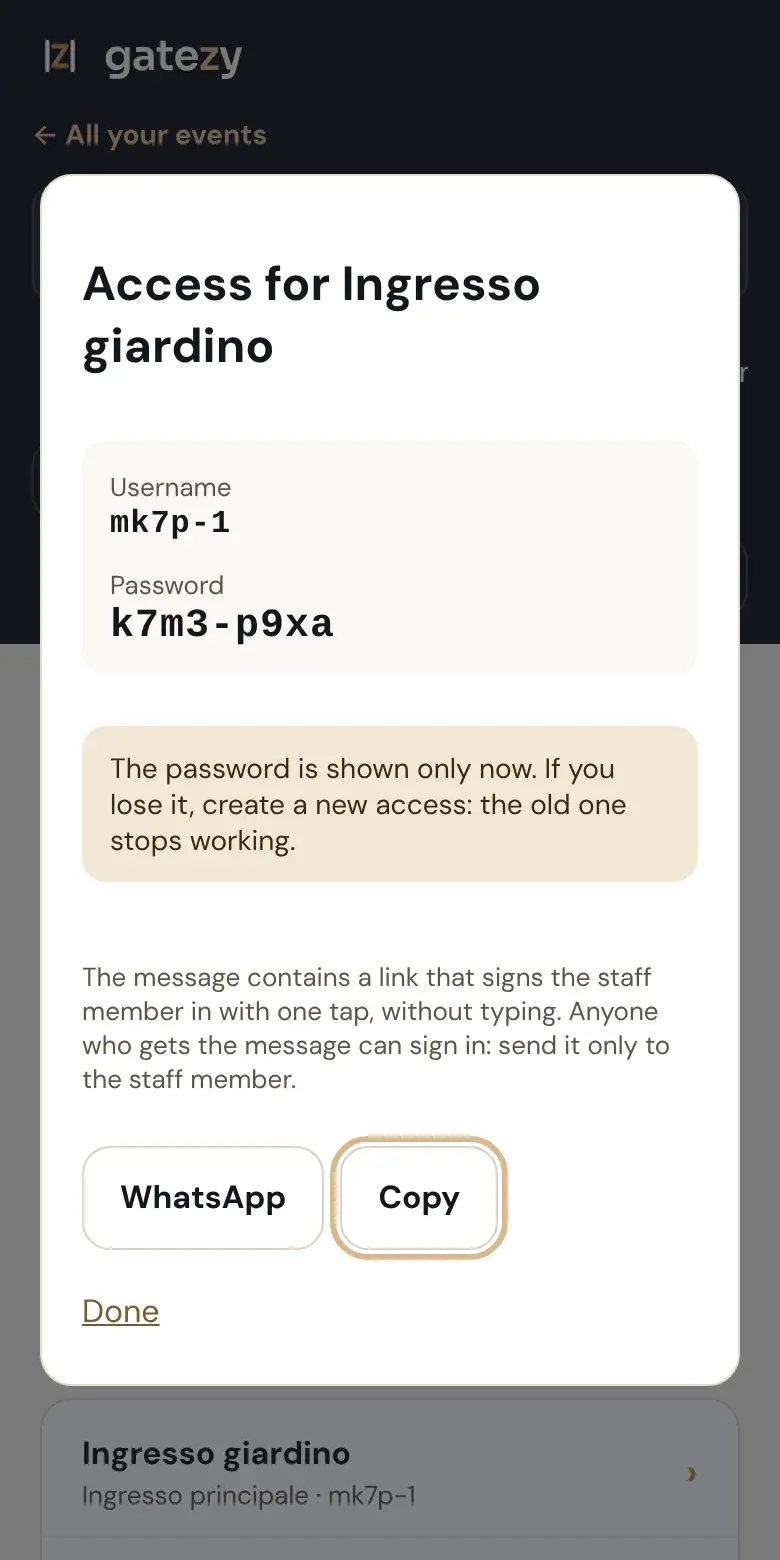
In that staff member's panel tap Share access: Gatezy creates a message with a one-tap sign-in link. Send it by WhatsApp only to that person, together with the link to this guide.

If a phone is lost, share the access again: the old one stops working.

Send staff their access

During the event

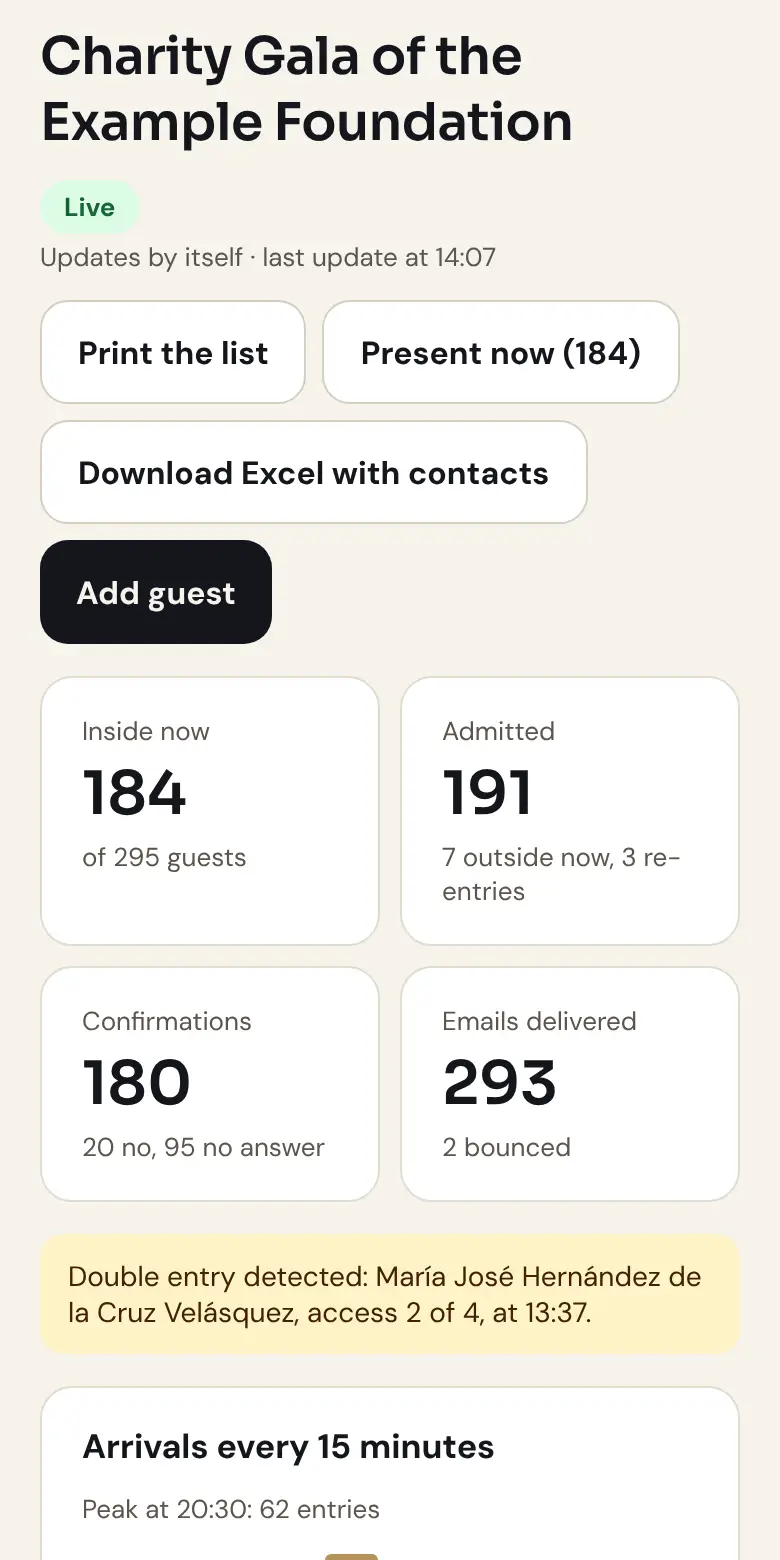
Open the overview: who is inside right now, arrivals every 15 minutes, areas, staff status (online or offline) and takings. It updates by itself.

From here you can Print the list, download who is present now or Download Excel with contacts. You can still add last-minute guests.

During the event

After the event

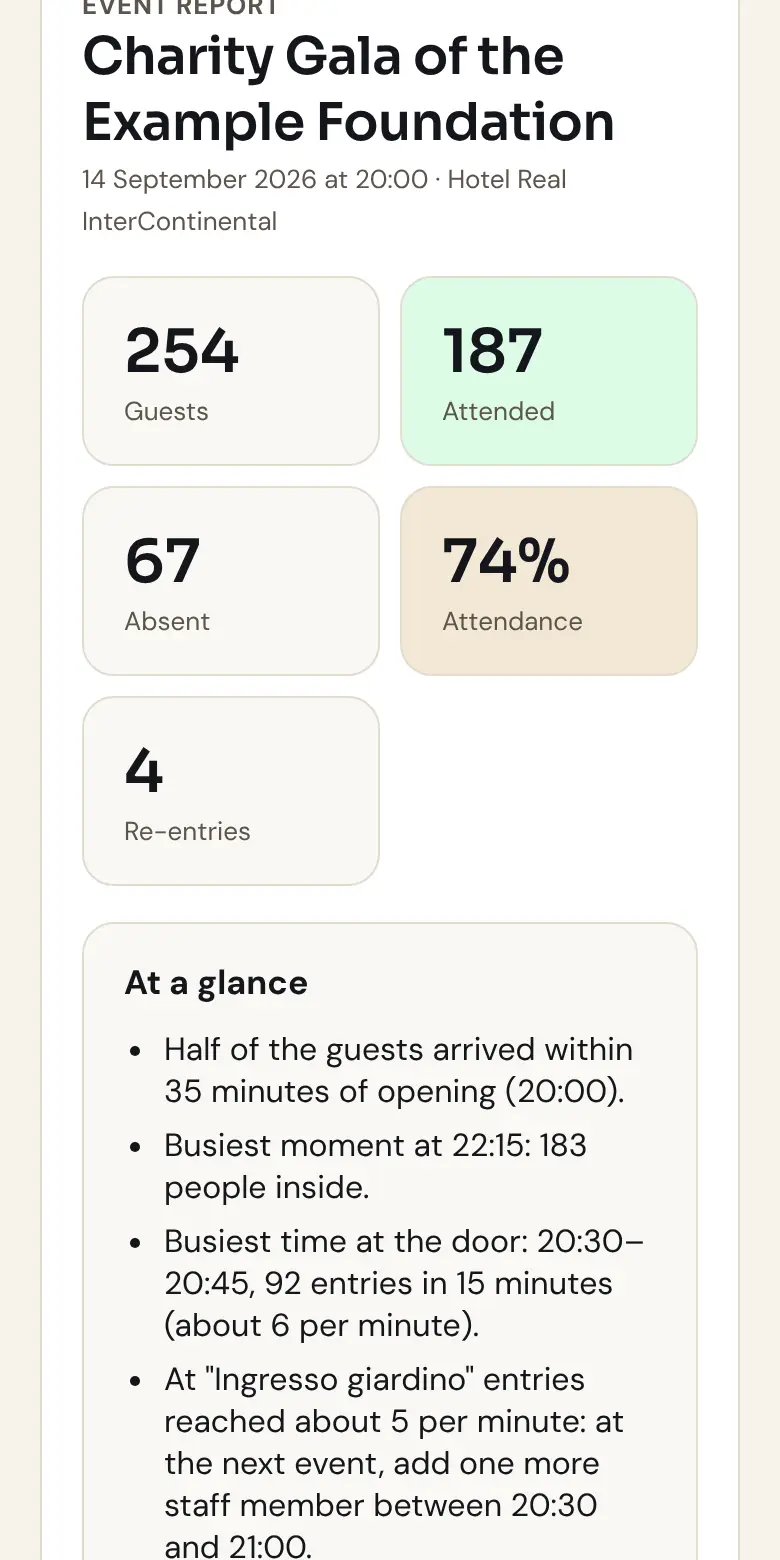
In Past events you find the report: attendance, no-shows, re-entries, arrivals hour by hour, confirmations and takings. Keep it with Print or save PDF.

To protect guests, personal data is deleted 7 days after the event; the report, with no personal data, stays.

After the event

↑ Back to top

In this part

Door staff

A three-minute read. Read it before the event, calmly.

  1. Before the event: sign in
  2. The working screen
  3. Scan the QR code
  4. Guest without a QR code
  5. If you are also the cashier
  6. Without internet

Before the event: sign in

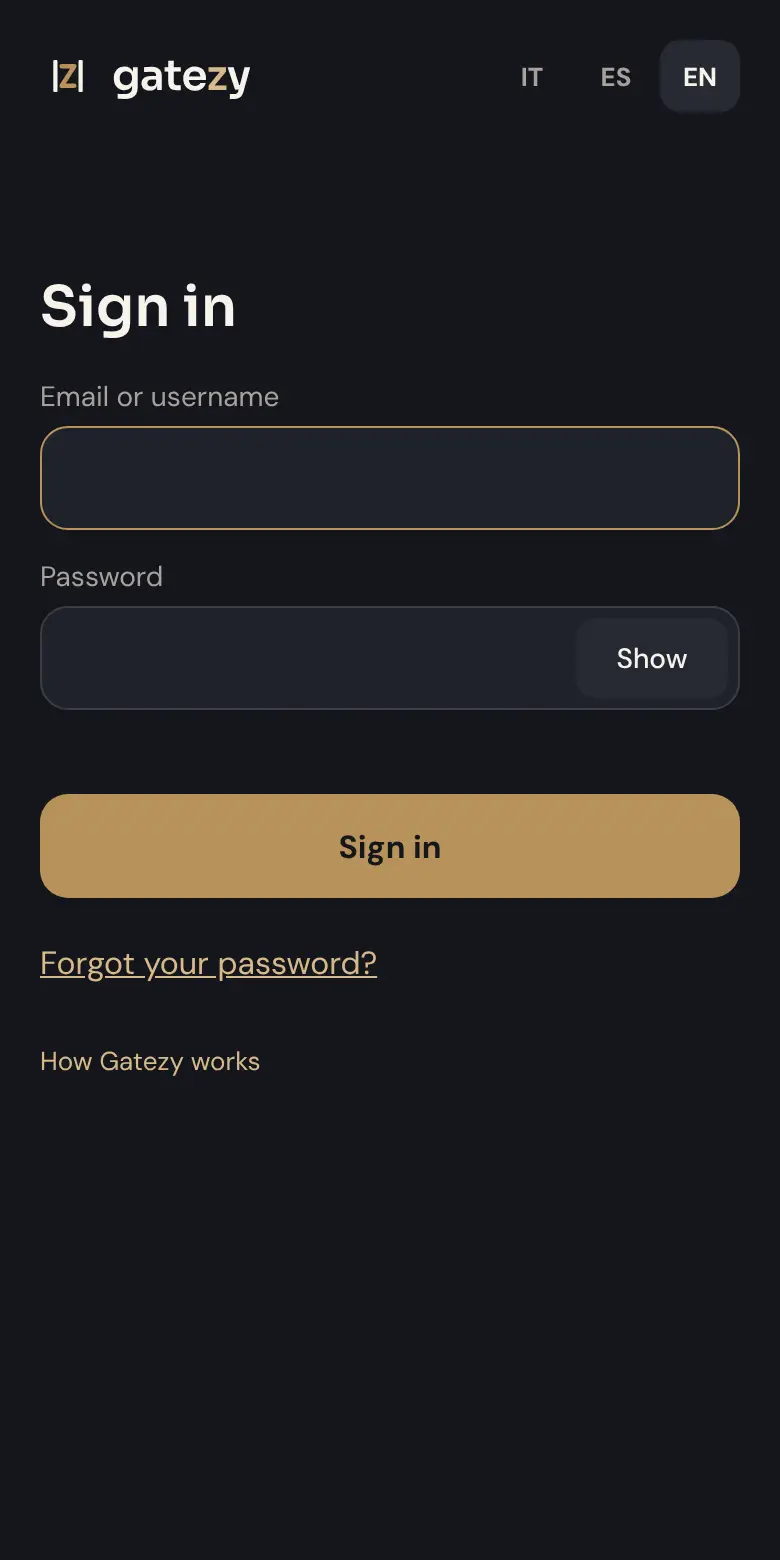
The organiser sends you a message with a link: open it with Chrome or Safari and you are in with one tap.

If the link does not work, open app.gatezy.net, type the username and password from the message and tap Sign in.

Sign in before the event, with internet: the phone downloads the guest list and then works offline too. When the browser asks, allow the camera.

Installing the app is optional: if you like, add it to the home screen from the browser menu.

Before the event: sign in

The working screen

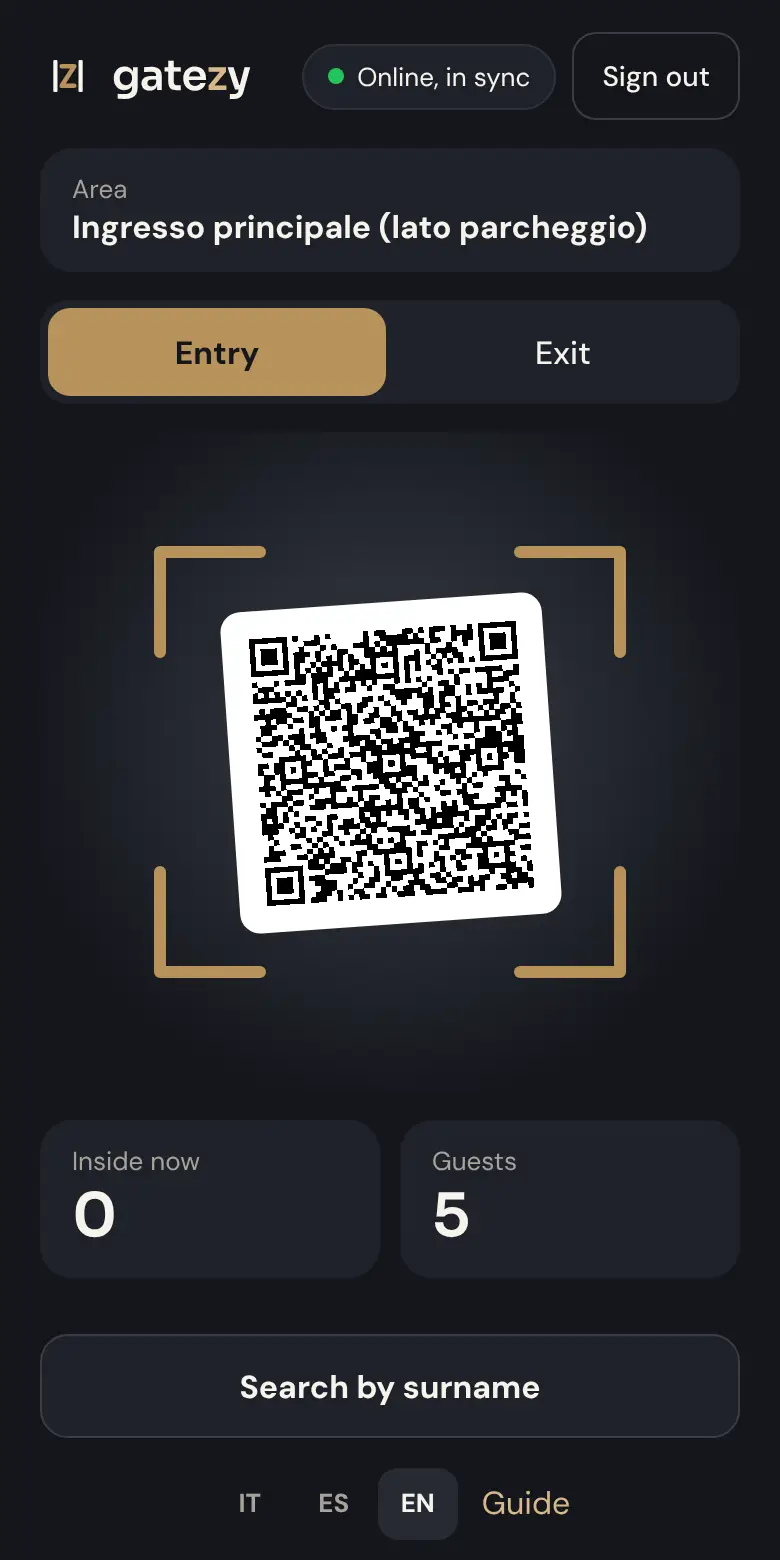
At the top you see the area you control and the connection status: "Online, in sync" or "Offline, N entries to send".

If the organiser allows it, Change lets you pick another area. If the event has exits, choose Entry or Exit.

Below: how many people are inside now and how many guests there are.

The working screen

Scan the QR code

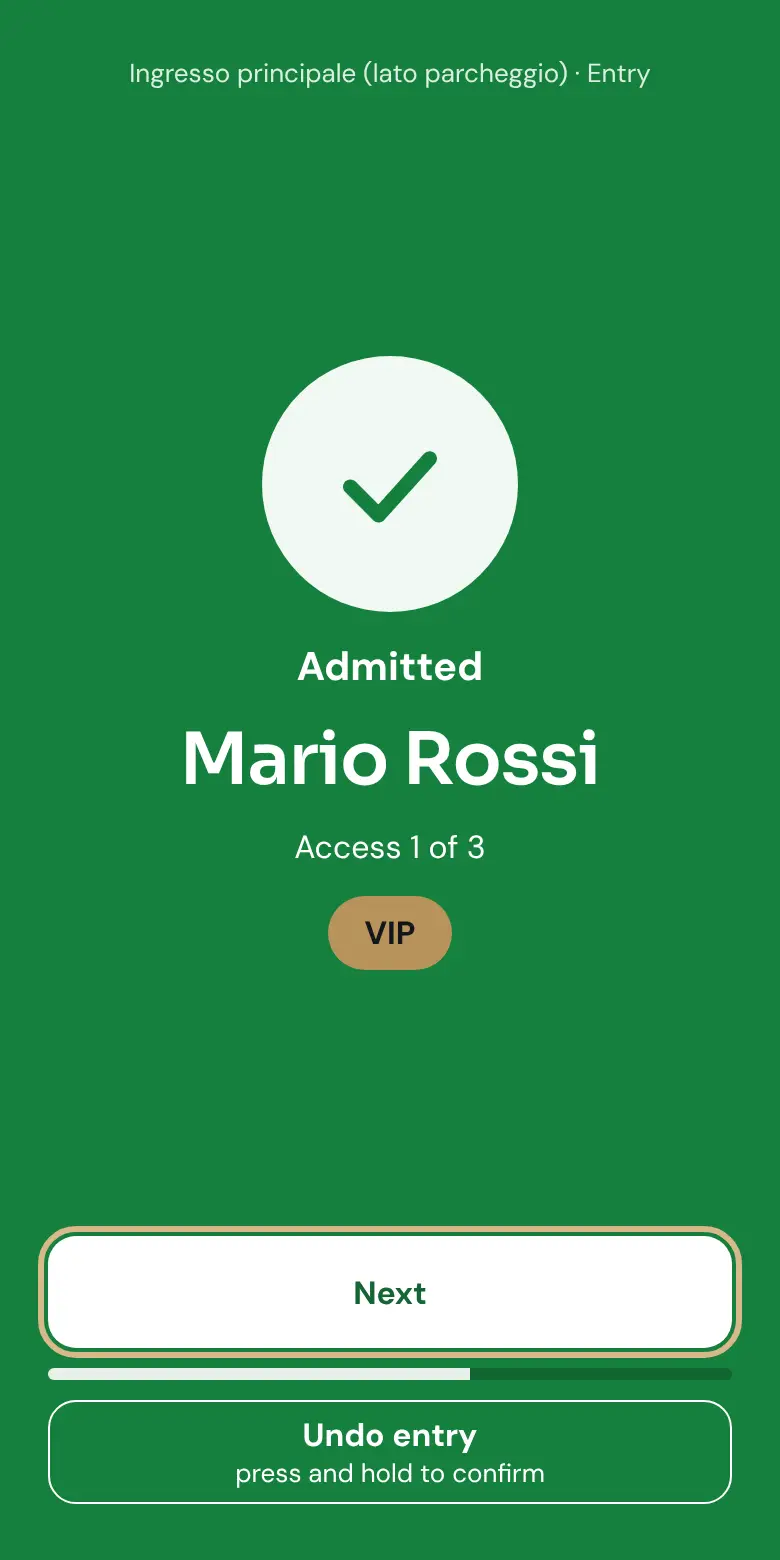
Point at the guest's code, on a phone or printed. The screen turns a colour and shows name, plus-ones and category.

Green closes by itself after a moment, and the next QR closes it straight away. The other colours stay until you tap Close or Got it.

Made a mistake? Undo entry works by holding it down for a second, within two minutes.

GreenThey can come in. It closes by itself: move on to the next guest.
OrangeCareful: already inside (with the time), must go through the main entrance first, or a new guest checked offline.
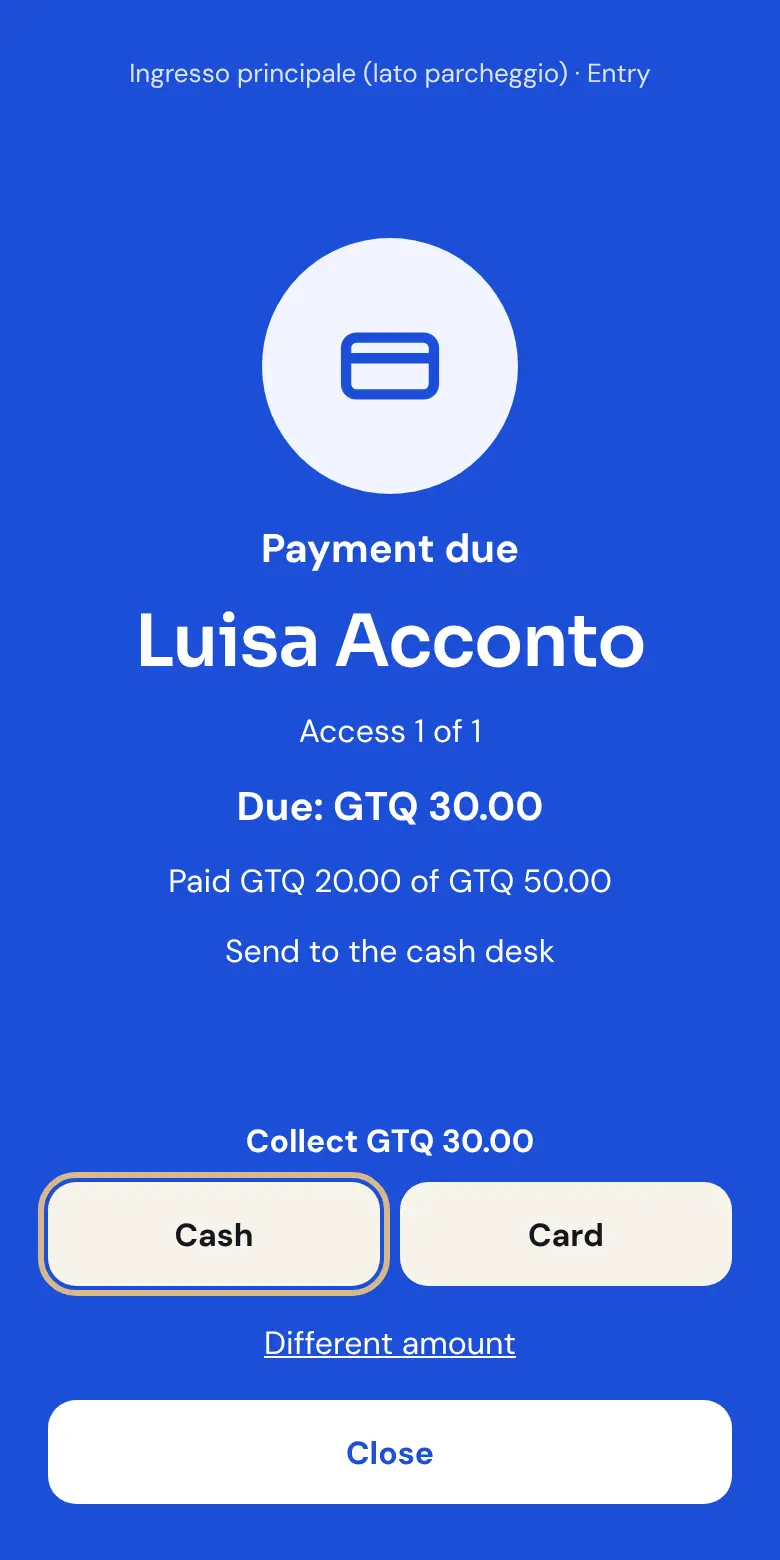
BlueCash desk: they have to pay, or have just paid.
RedThey cannot come in: unknown code, another event, cancelled invitation, area not allowed or outside opening hours.
Scan the QR code

Guest without a QR code

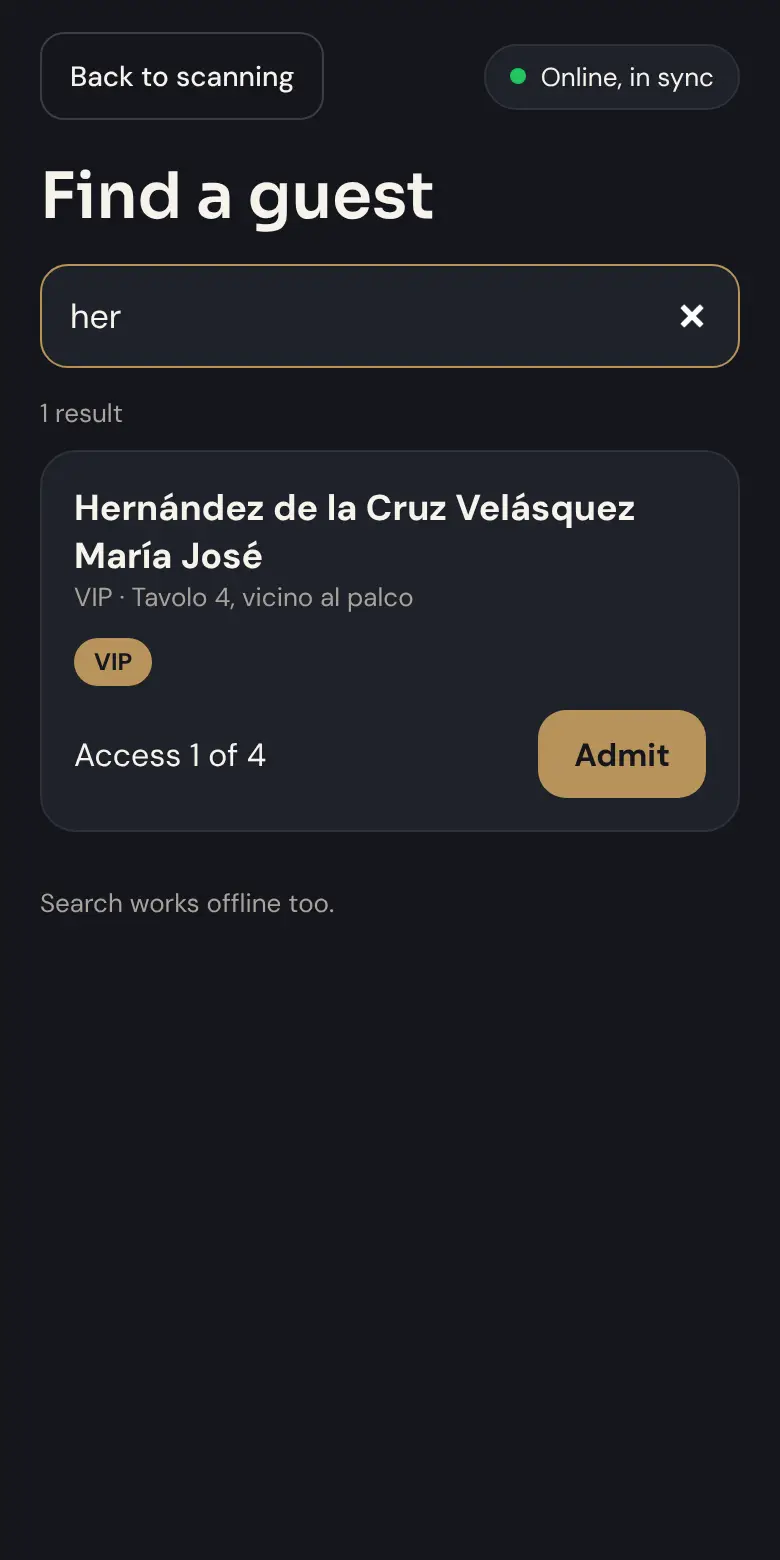
Flat battery or lost email? Tap Search by surname, type the first letters of the surname and tap Admit.

Search works offline too. After a manual entry you have a few seconds to undo it.

Guest without a QR code

If you are also the cashier

When a guest has to pay, the screen turns blue and shows the amount. Take the payment and choose Cash or Card; if you receive a different amount, use Different amount.

If the cash desk is at the door, full payment also records the entry. If it is separate, the guest then goes through the entrance, where they show green.

If you are also the cashier

Without internet

Keep working as usual: entries are saved on the phone and sent by themselves when the connection is back.

Do not sign out with Sign out while there are entries to send: the app reminds you.

Two hours after the event ends, access closes by itself. Thank you!

↑ Back to top

Frequently asked questions

The guest cannot find the email.

Check the spam folder together. If the address was wrong, fix it with Edit: the invitation is sent again. At the door, staff can still let them in by searching the surname.

Can a QR code be used twice?

No. The second time the screen turns orange and shows when they already came in.

Does the staff need to install an app?

No: the phone's browser is enough. Adding it to the home screen is optional.

What if the internet goes down at the door?

Nothing: scanning continues. Entries are sent when the connection is back.

Can I change things during the event?

Yes: areas, cash desk and permissions reach the staff phones within 20 seconds.

Need help?

Organisers can write to us from Support in the app. For anything else:

Message us on WhatsApp